---
title: "Webmail.ee FAQ"
canonical_url: "https://www.zone.lv/help/kb/webmailee-faq/"
post_type: "ht_kb"
published: "2023-09-12T12:52:18+00:00"
modified: "2025-11-28T11:39:56+00:00"
language: "en"
author: "silver"
taxonomies:
ht_kb_category:
- name: "Webmail.ee"
url: "https://www.zone.lv/help/kb-categories/webmailee-en/"
ht_kb_tag:
- name: "e-mail"
url: "https://www.zone.lv/help/kb-tags/e-mail/"
- name: "e-mail client"
url: "https://www.zone.lv/help/kb-tags/e-mail-client/"
- name: "Email"
url: "https://www.zone.lv/help/kb-tags/e-post-eng/"
- name: "webmail"
url: "https://www.zone.lv/help/kb-tags/webmail/"
- name: "webmail.ee"
url: "https://www.zone.lv/help/kb-tags/webmailee-en/"
---
# Webmail.ee FAQ
In this article, we have gathered the basic functions related to the [Webmail.ee](http://Webmail.ee) that will make it easier for you to use the application.
[More detailed instructions for working with Webmail.ee](https://www.zone.lv/help/en/kb-categories/zone-webmail-web-based-e-mail/)[ ](https://www.zone.lv/help/en/kb-categories/zone-webmail-web-based-e-mail/)
## Two- and three-panel view
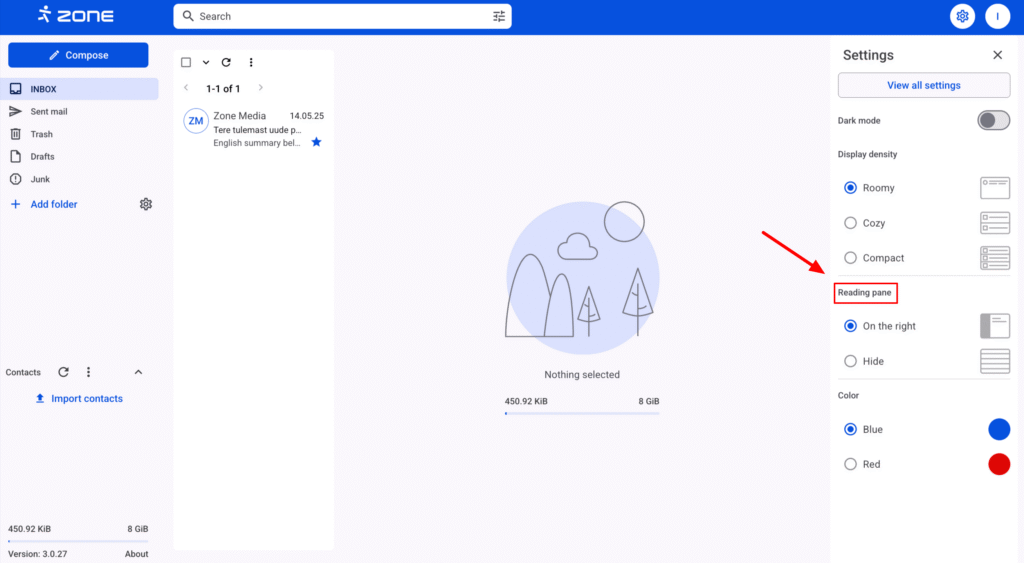
You can choose which mailbox view you prefer. You can change the screen view by clicking on the `gear` icon on the top right, and in the `Reading pane` you can choose between three (`On the right`) and two (`Hidden`) panes.
[](https://www.zone.lv/help/en/kb/webmailee-faq/webmailee_quicksettings/)
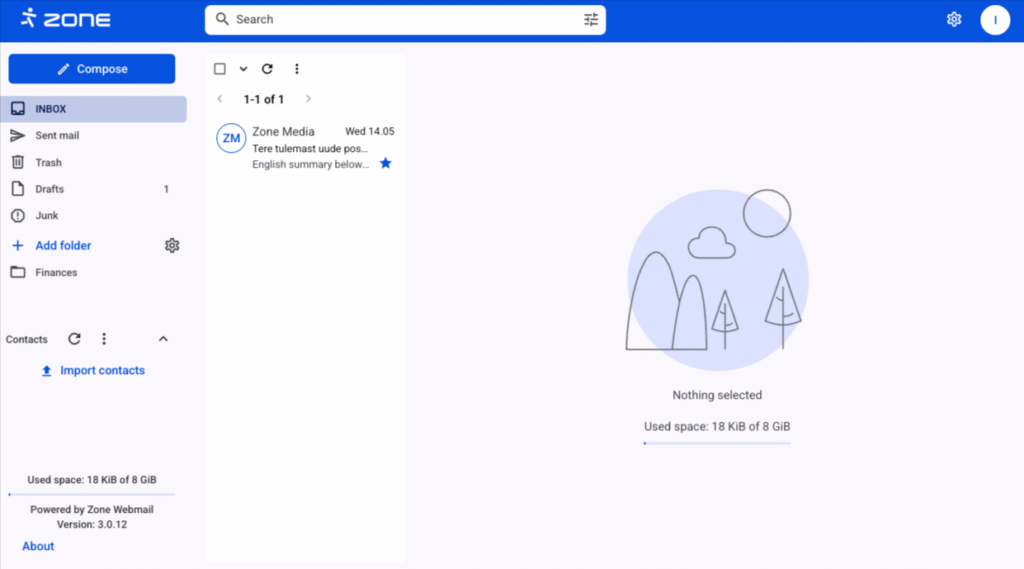
By default, the mailbox is displayed with three panels, i.e. a list of folders, a list of emails and the contents of the email:
[](https://www.zone.lv/help/en/kb/general-settings-webmailee/webmailee_appearance_3pane/)
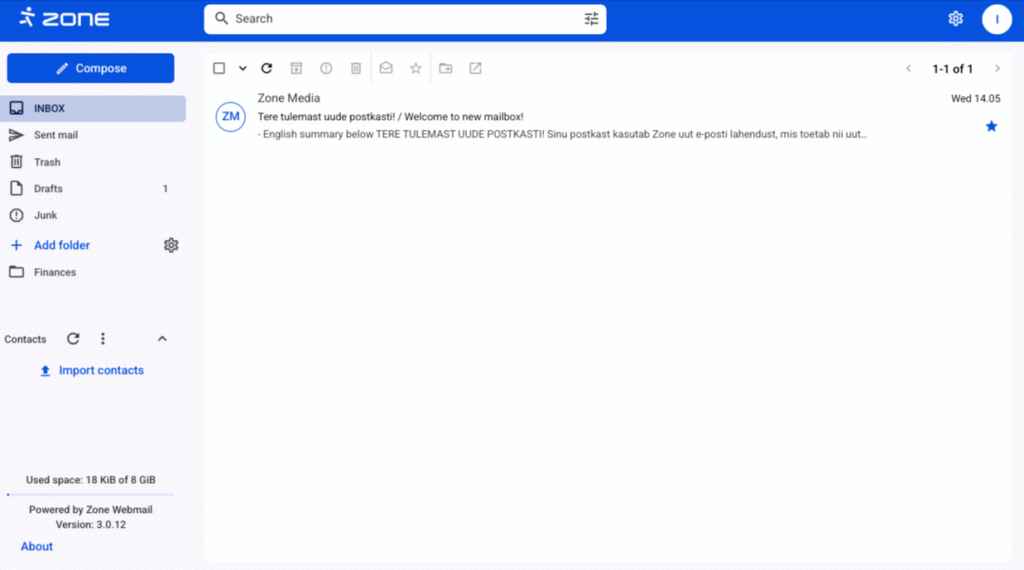
In the two-pane view, only the list of folders and the list of emails are displayed. Clicking on an email opens it in a second pane:
[](https://www.zone.lv/help/en/kb/general-settings-webmailee/webmailee_appearance_2pane/)
## Import contacts
[Webmail.ee](http://Webmail.ee) supports importing contacts in CSV format from external applications such as Gmail, Outlook and Mac Mail etc. If CSV file properly formatted, it does not directly matter where the contacts are exported from.
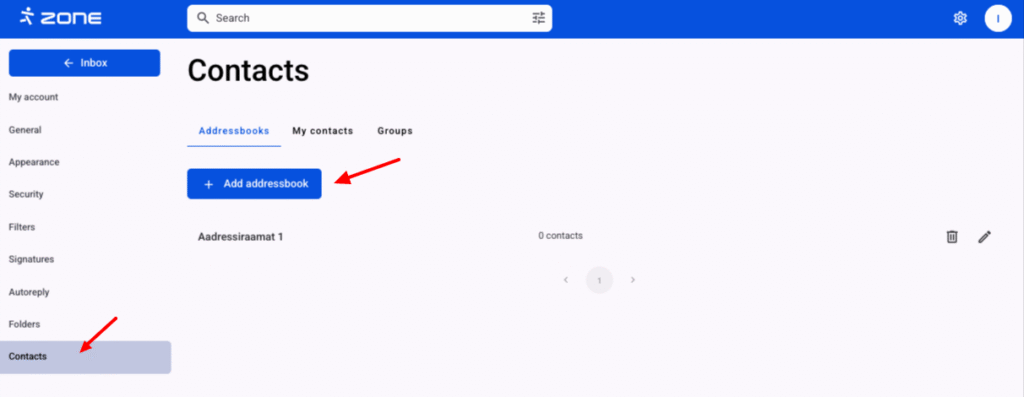
You can then import the downloaded file into your Webmail.ee. If you don’t have an address book there, it can be added by clicking on the `gear` icon on the top right and `View all settings`. Then click `Contacts` and `Add addressbook`.
[](https://www.zone.lv/help/en/kb/webmailee-faq/webmailee_addressbook_1-2/)
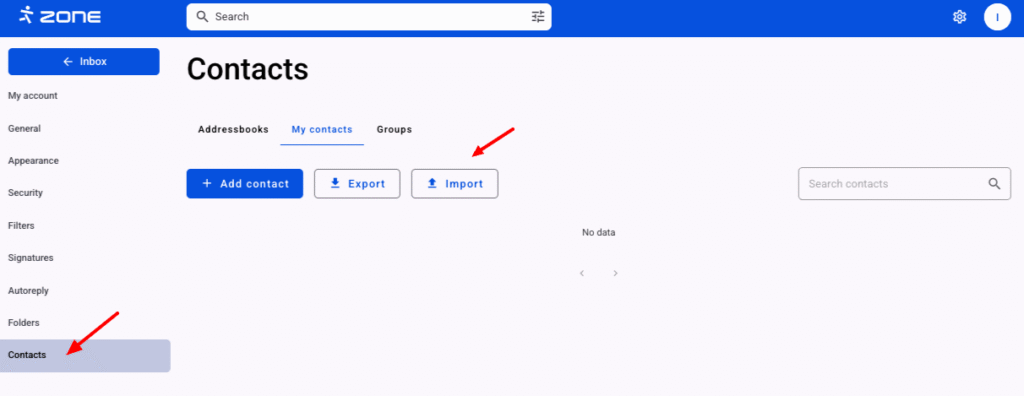
In order to import contacts, select `My contacts` and `Import`.
[](https://www.zone.lv/help/en/kb/webmailee-faq/webmailee_contacts_import-2/)
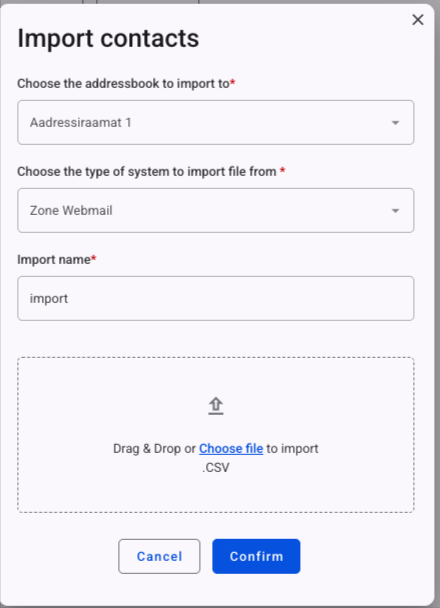
In the new window, you can import a contact file by dragging and dropping it in your browser into the window `Import`.
[](https://www.zone.lv/help/en/kb/webmailee-faq/webmailee_contacts_import_1-2/)
When the correct file is imported, the contacts are automatically added to the contact list.
## Email search
[Webmail.ee](http://Webmail.ee) uses the FULLTEXT index to search for text. More detailed search parameters are given in the table below (click on the arrow to see examples!)Otsinguparameetrid
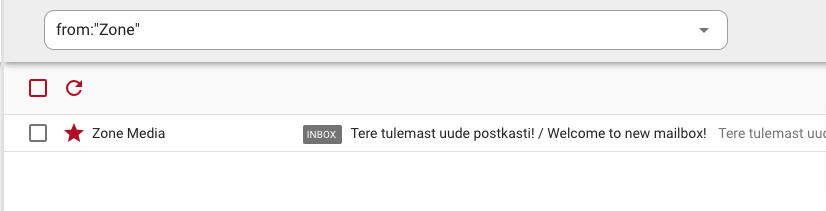
Search optionSearch кeywordSender`from:`You can search by sender using `from:email`, `from:"Displayed name"` or `from:domainname`. It’s worth noting that a quote-separated sender search will search for emails LIKE “%name1 name2%”, i.e. it will also display emails with a header such as “name1 name2 name3”. Example:
[](https://www.zone.lv/help/?attachment_id=10926)
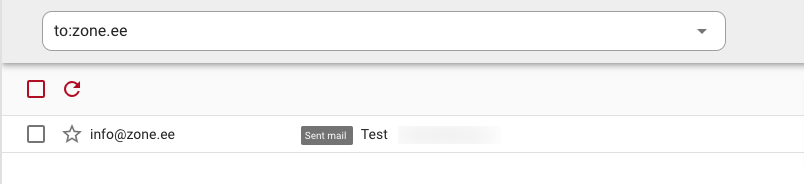
Recipient`to:`when searching by parameter **to**: , emails are searched by both **to:** and **cc:**
To search for a recipient, use `to:email`, `to:"Displayed name"` or `to:domainname`. It should be noted that searching by recipient separated by quotes will find emails based on LIKE “%name1name2%”, i.e. emails with the subject “name1 name2 name3” will also be displayed. Example:
[](https://www.zone.lv/help/en/kb/webmailee-faq/webmail_ee_eng_10/)
Subject`subject:`To search by subject, use the keyword `subject:`. If you want to search for a more specific phrase than subject, separate it with the quotation marks `subject:"word1 word2"`. The principle of partial match search, i.e. LIKE “%word1 word2%” also applies to subject search, and the result also shows emails with the subject, e.g. “123word1 word21”.
Date/period`older:YYYY-MM-DD`
`before:YYYY-MM-DD`
`newer:YYYY-MM-DD`
`after:YYYY-MM-DD`When searching by date or period, you must enter the date in the format **`Year-month-day`**
To search for emails sent/received after a certain date, use the keywords `older:YYYY-MM-DD` or `before:YYYY-MM-DD`
To select a specific period, combine them by entering the start and end dates of the period you are looking for:
[](https://www.zone.lv/help/ru/kb/webmailee-chavo/webmail_ee_ru_11/)
Additional information For convenience, you can also specify **today** and **yesterday** as a period parameter, such as before:today and after:yesterday.
Starred `is:starred`Read `is:read`Unread `is:unread`Emails with an attachment`has:attachment`If you want to find emails with attachments, add the keyword `has:attachment`
Email size`minSize:`
`maxSize:`For example, to search for all posts larger than 10MB, add `minSize:10MB` to the search and `maxSize:10MB` to search for all emails smaller than 10MB.
Specific folder`in:`By default, emails are searched in all folders except Junk and Trash folders. To search for emails from a specific folder, use the keyword `in:folder name`, for example: `in:Trash`
Exact word`string`A plain text search will only show emails with a specific, unchanged string of characters:
[](https://www.zone.lv/help/ru/kb/webmailee-chavo/webmail_ee_ru_12/)
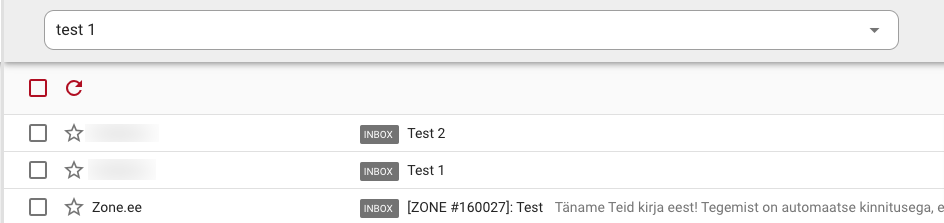
Exact phrase`"Phrase"`To search for a phrase, put the search keywords in quotation marks:
[](https://www.zone.lv/help/ru/kb/webmailee-chavo/webmail_ee_ru_12-2/)
Otherwise, all words are searched for separately:
[](https://www.zone.lv/help/ru/kb/webmailee-chavo/webmail_ee_ru_13-2/)
Remove word from results`-string`If you want to find emails with a certain character string but remove emails containing a different character string, use e.g. `-string`:
[](https://www.zone.lv/help/ru/kb/webmailee-chavo/webmail_ee_ru_14/)
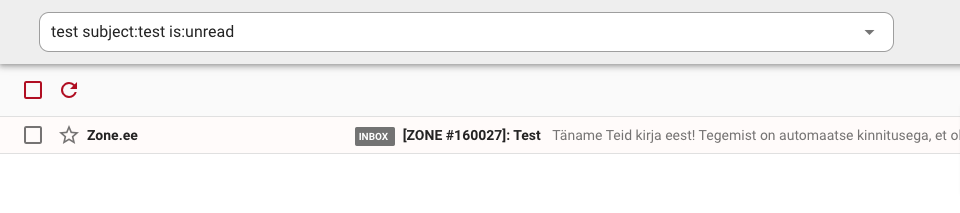
Combined search`search keyword:string search keyword:string`In Webmail.ee, you can search for emails by combining full-text keyword searches separated by a space:
[](https://www.zone.lv/help/ru/kb/webmailee-chavo/webmail_ee_ru_15/)
## Filtering emails
[Webmail.ee](http://Webmail.ee) allows you to configure server-level email filters.
Server-level filtering means that emails are filtered before they even reach your mailbox. For example, you can move emails to different folders based on keywords, and this will happen automatically in all email applications that you use with the same email address.
Filters are only applied to new incoming messages and are not applied to existing emails.
You can apply multiple filters to the same email at the same time. The exception is deleting an e-mail. If a filter deletes an email, no filters other than forwarding the email will be applied.
Filters are applied in the order in which they are listed in the settings. If one filter already specifies an action, the other filter will not overwrite it. For example, if one filter performs the action of moving email to folder X, the second filter will not move the email to folder Y. The exception is marking as spam/not spam.
[See the next article](https://www.zone.lv/help/en/kb/filtering-mail-through-the-web-client-webmailee/) for more examples on filtering emails.
## Security, two-factor authentication, application password, etc.
Security is seen as one of the most important foundations for the development of the [Webmail.ee](http://Webmail.ee) and can be ensured by the user in the following ways.
### Two-factor authentication (2FA)
You can set up two-factor authentication for an email account. This means that the account cannot be logged in with just a password, but requires a second factor as well. See the following article for a [more detailed configuration instructions](https://www.zone.lv/help/en/kb/e-mail-2fa/).
### Application password
If you want to use two-factor authentication and, for example, an email application (Outlook, Mac mail, etc.) at the same time, you need to set the ` application password` for the account.
The application password is an automatically generated secure password that can only be used for authentication on mailboxes that use secure IMAP and SMTP connections.
Detailed instructions on [how to activate the application password can be found here](https://www.zone.lv/help/en/kb/mailbox-application-passwords/).
### Authentication with a U2F-compliant physical security key.
In addition to the classic TOTP authentication tool, Webmail also supports the WebAuthn standard. This means that logging in is also possible, e.g. by fingerprint from a smart device, FaceID, Windows Hello or a security key (Yubikey, etc.).
You can read more about this in [our blog article](https://www.zone.lv/blogi/2022/09/08/zone-veebimeil-muutus-veelgi-turvalisemaks/).
### Security events
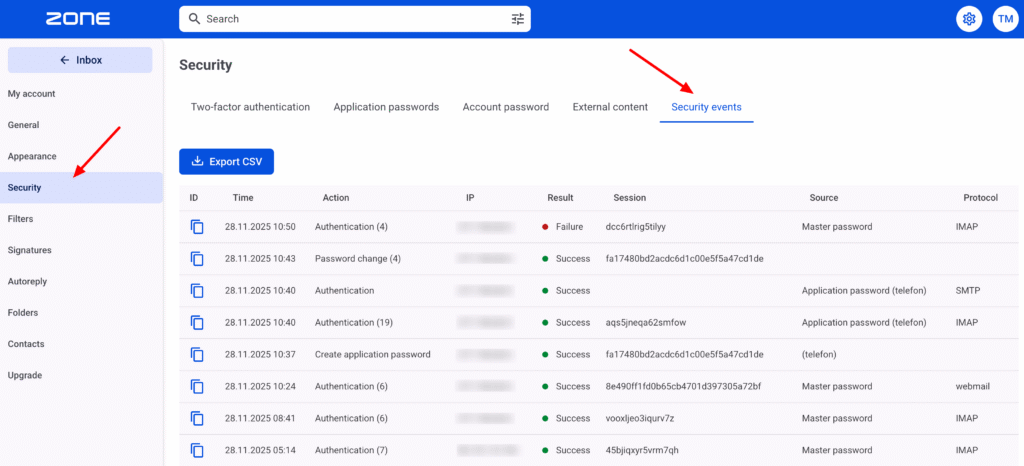
If necessary, the user can check where and how the authentication (or authentication attempt) of his mailbox was made. To do this, go to the `Security` -> `Security events` in the settings section.
[](https://www.zone.lv/help/en/kb/webmailee-faq/webmail_log_eng/)
If you have any doubts, you can easily view all login attempts. If necessary, the security events can be downloaded and transferred, for example, to your IT administrator.
Actions performed from the same IP address within six hours are grouped together, and in the case of repeated actions, the number of repetitions is displayed in parentheses after the activity.
The Source column shows whether the action was performed with the main password or the application password.
The event ID and session ID are useful when you need to investigate more detailed actions or their causes.
The security events log is stored for one year.